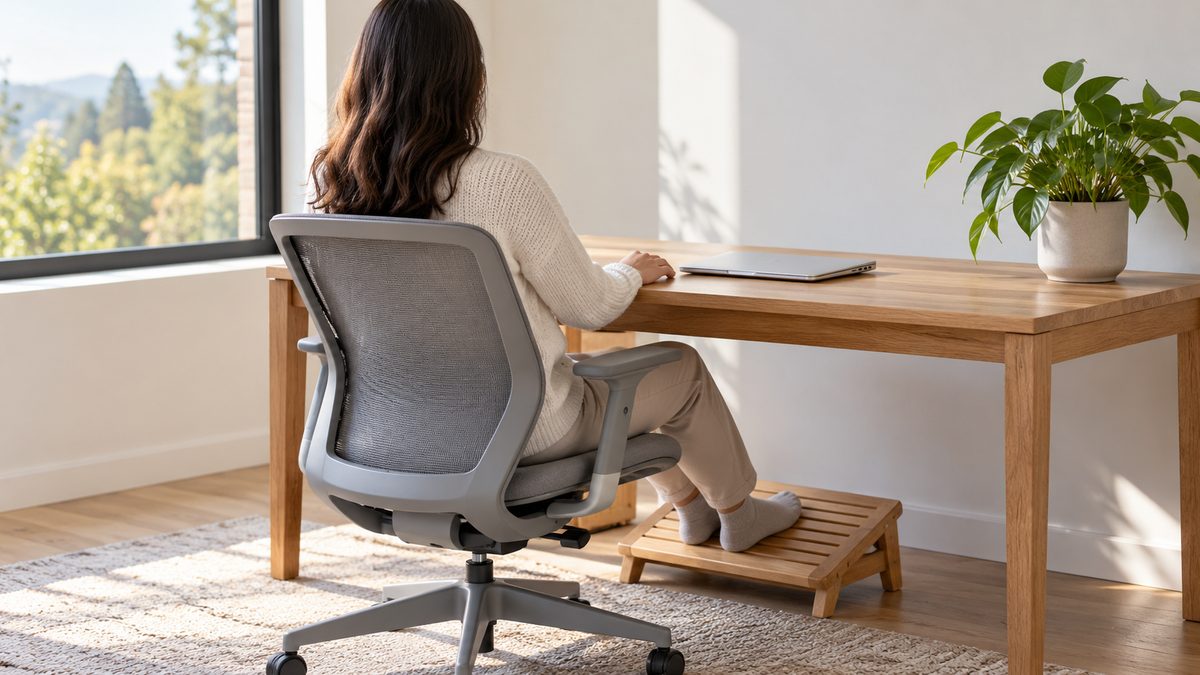
A desk review is easier when you work through the setup in a consistent order. Start with the space around your feet, then consider the chair, hands, eyes and working routine. This helps you see how an adjustment in one place affects another.
Use the checklist during ordinary tasks. A workstation can look tidy yet require a long reach each time you use the mouse. Type, read, make a call and stand up while checking the arrangement. The most useful changes address a demand you can identify.
1. Clear the space and check stability
- Remove bags, boxes and unused equipment from your leg space.
- Check that the chair and desk feel secure.
- Route cables away from feet and chair wheels.
- Leave enough room to stand and move away.
A blocked space may force you to sit diagonally or keep one leg tucked under the chair. Clearing it costs nothing and makes later adjustments easier. Check the chair base, wheels and any moving desk parts before adding accessories or raising equipment.
Keep essential items within easy reach without covering the work surface. Daily clutter often migrates into the space where your forearms or mouse need to move. Decide where notebooks, water and chargers will live so the arrangement stays usable after the initial reset.
2. Support your feet and thighs
- Rest your feet securely on the floor or a stable footrest.
- Check for uncomfortable pressure behind the knees.
- Leave room to change leg position.
Set seat height with the desk task in mind. If raising the chair helps your shoulders but leaves your feet dangling, add suitable foot support. The seat should allow you to sit back while keeping your knees clear of its front edge.
Do not use a fragile box or a pile that slips when you push against it. A support should feel secure when you change position. If seat depth remains unsuitable, review the chair's adjustments before adding a cushion that may create a new problem.
3. Check the backrest and armrests
- Use the backrest without being pushed away from the desk.
- Adjust lower back contact for comfort.
- Lower or move armrests that lift your shoulders.
- Confirm that armrests do not block desk access.
A backrest should offer support rather than demand that you hold a pose. Test a slight recline if available and check its tension. Read the controls or manufacturer's guidance if you are unsure how the chair locks or moves.
The office chair guide explains fit in more detail. If you are checking a shared workstation, note which controls matter for your body so you can reset them quickly next time. A simple repeatable reset is more useful than memorising someone else's settings.
4. Bring controls into easy reach
- Place the keyboard near enough for relaxed upper arms.
- Keep the mouse beside the keyboard on a suitable surface.
- Avoid a sharp desk edge beneath your wrists.
- Put frequent controls closer than occasional reference items.
Use your normal typing and pointing actions to test the layout. If you reach sideways for the mouse, move it closer or consider how keyboard width affects the space. Avoid gripping harder simply because the mouse is difficult to reach.
For laptop work, separate controls allow you to position the display independently. Our laptop setup guide covers temporary arrangements too. A stand without another keyboard may lift your arms while solving the screen height problem, so judge the whole task.
5. Make the screen readable
- Keep the main display directly in front of your usual position.
- Adjust text size before leaning forwards to read.
- Set height around your comfortable gaze and lenses.
- Reduce glare from windows and lamps.
Begin with a comfortable viewing distance and test an everyday document. Lower the screen if you must lift your chin to use progressive lenses. A screen should fit your vision rather than require your neck to compensate for a prescribed height.
Place secondary screens according to how often you use them. Turn your chair and body when a side screen becomes the main task. The monitor positioning guide explains arrangements for equal and unequal use without insisting on one universal layout.
6. Check the routine around the furniture
- Identify natural pauses for getting out of the chair.
- Keep a safe route for a short walk.
- Change position before stillness becomes a prolonged demand.
- Review phone use as well as computer time.
Furniture cannot provide all the variety your day needs. A standing desk adds another position but still requires appropriate screen and keyboard placement. Build movement around task transitions and keep expectations practical during meetings or customer work.
Use breaks from sitting to develop a routine that does not depend entirely on remembering. If work rules prevent feasible breaks, discuss task organisation or an individual assessment with the appropriate workplace contact.
For paper based work, add a check for document position and writing space. Keep frequently read pages near the screen where practical, with enough room to write without twisting around a keyboard. A stable document support may help during copying tasks, but it should not take the only space available for the mouse or block your view.
Keep a short record of meaningful changes
Write down the problem you noticed and the single change you tried. For example, record that the mouse moved closer or text size increased. This makes it easier to keep useful adjustments and reverse changes that made work less comfortable.
A checklist cannot diagnose pain. Seek clinical advice for symptoms that persist or worsen, particularly with numbness, weakness, fever or other new changes. Sudden bladder or bowel difficulties with back pain require urgent assessment. For an ongoing disability or condition, a personalised workplace review may be the appropriate next step.