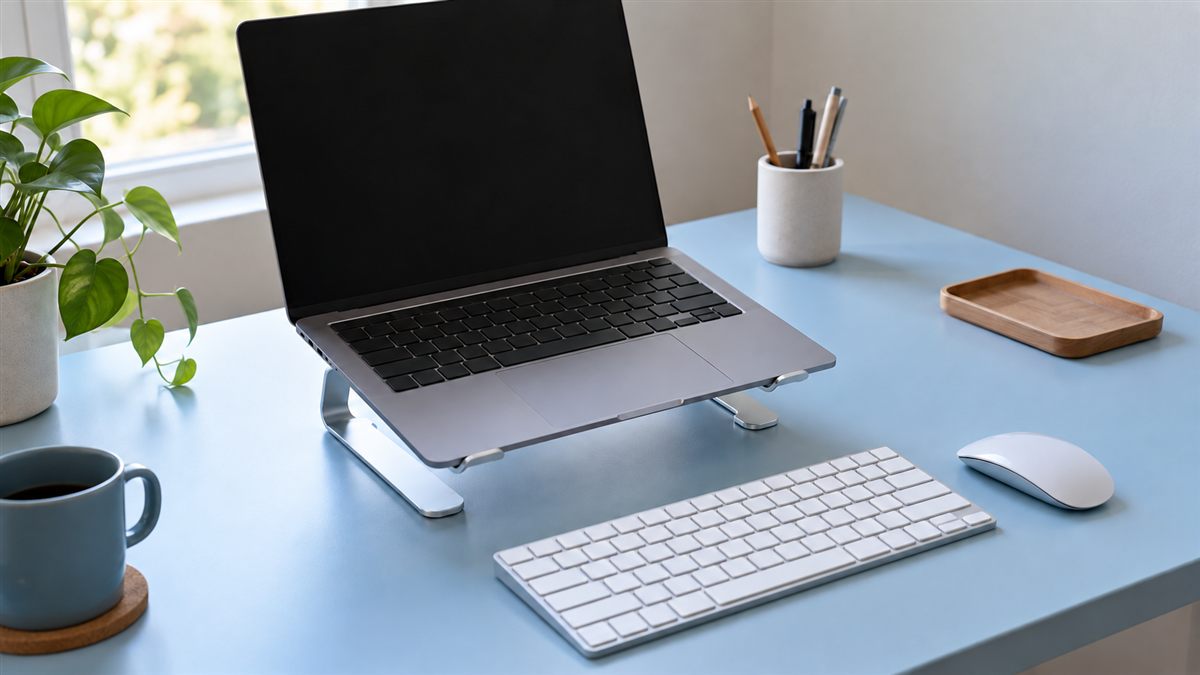
A laptop joins two things your body would often prefer to place separately: a screen near comfortable viewing height and controls near relaxed hands. For longer sessions, a separate keyboard and mouse give you the freedom to raise the display without lifting your arms.
When accessories are unavailable, aim for a workable compromise and shorter stretches of uninterrupted use. A temporary setup does not need to become a permanent habit. Notice which part of the arrangement keeps drawing you into an uncomfortable position, then change that feature first.
Separate the screen from the controls
Place the laptop on a stable stand and position a keyboard in front of you. Keep the mouse beside the keyboard rather than behind it or at the far edge of the table. Let your upper arms rest near your sides as you type.
Raise the display until you can read comfortably without keeping your neck bent towards your lap. The exact height depends on your eyesight, screen size and lenses. Increase text size before moving your face close to a small screen. Our monitor height and distance guide offers a starting process.
Leave the laptop's ventilation openings clear. A soft cushion, folded blanket or thick towel can block airflow and create an unstable base. Choose a support with enough surface area for the device and check that cables cannot pull it off the stand.
Make a dining table usable
Many dining tables are high relative to typing height. If you raise the chair to relax your shoulders, your feet may lose contact with the floor. Add stable foot support rather than allowing your legs to hang. Avoid loose cushions that slide as you stand.
A dining chair may also lack suitable back support. Try sitting fully back and assess whether you can still reach the keyboard. A small folded towel may fill a gap, but remove it if it pushes you forward or creates pressure. More padding is not automatically more comfortable.
Clear table space for your forearms and mouse movements. Plates, chargers and notebooks can gradually push the laptop farther away. Give the work area a boundary so daily clutter does not turn comfortable reach into a long lean across the table.
Choose the next improvement
- If the screen pulls your head down, separate the controls before raising it substantially.
- If your shoulders stay lifted, check the relationship between chair and table height.
- If your feet dangle, provide support with a broad, stable base.
- If you squint at spreadsheets, change application zoom and review lighting.
- If cables restrict placement, rearrange power access without creating a walking hazard.
This order can prevent unnecessary shopping. A keyboard may solve more of a laptop problem than a new chair, while a better chair may matter more than a second monitor. Match the purchase to a problem you can describe during actual work.
Handle short sessions without accessories
For a brief email check, place the laptop on a firm surface and bring it close enough to avoid reaching. Keep the display open at an angle that makes text visible. Use larger type and avoid holding your body rigid while searching for a perfect compromise.
If you need sustained typing, move to a more suitable workspace when possible. A coffee table may force a deep forward bend, while working in bed can leave little back support. Neither becomes a reliable desk simply because the device is portable.
On a sofa, support yourself and the device securely, keep vents clear and stop before the position becomes tiring. Change tasks or get up between short sessions. The guide to sitting breaks can help you make those transitions part of the day.
Plan for travel and shared desks
A compact keyboard and small mouse can make temporary workspaces easier to adapt. Pack them where you can reach them rather than reserving them for a perfect desk. A lightweight stand may help too, provided it sits securely on the available surface.
Do a quick check of chair height, screen glare and legroom at each new location. Hotel desks sometimes put a drawer exactly where your knees need to go. Moving to another stable table can be more useful than trying to force a chair beneath an unsuitable one.
Keep confidential work and physical comfort in mind together. Sitting twisted to hide the screen from a passer-by is a poor long term arrangement. Change location or use an appropriate privacy solution instead of keeping your neck turned for the whole session.
Check the camera position during video calls as a separate task. A camera angled from a low table may tempt you to bend towards it throughout the meeting. Raise the display securely, use separate controls if you need to type and sit where the microphone works without leaning. Avoid rearranging the whole workstation solely for a flattering camera angle.
Build a laptop routine you can repeat
Set up before opening your busiest application. Connect the controls, clear the mouse area and adjust zoom while you still have attention available. A small ritual makes accessories more likely to be used, particularly when your workspace doubles as a dining area.
For small rooms, keep the keyboard, mouse and stand together in one box. A setup that takes little effort to unpack is easier to maintain. Our budget work from home guide discusses spending priorities without assuming a dedicated home office.
Watch for symptoms beyond ordinary short lived stiffness. Pain that continues, worsens, spreads into an arm or comes with numbness or weakness needs professional advice. Make useful workspace changes, but do not use repeated equipment purchases as a substitute for assessing persistent discomfort.