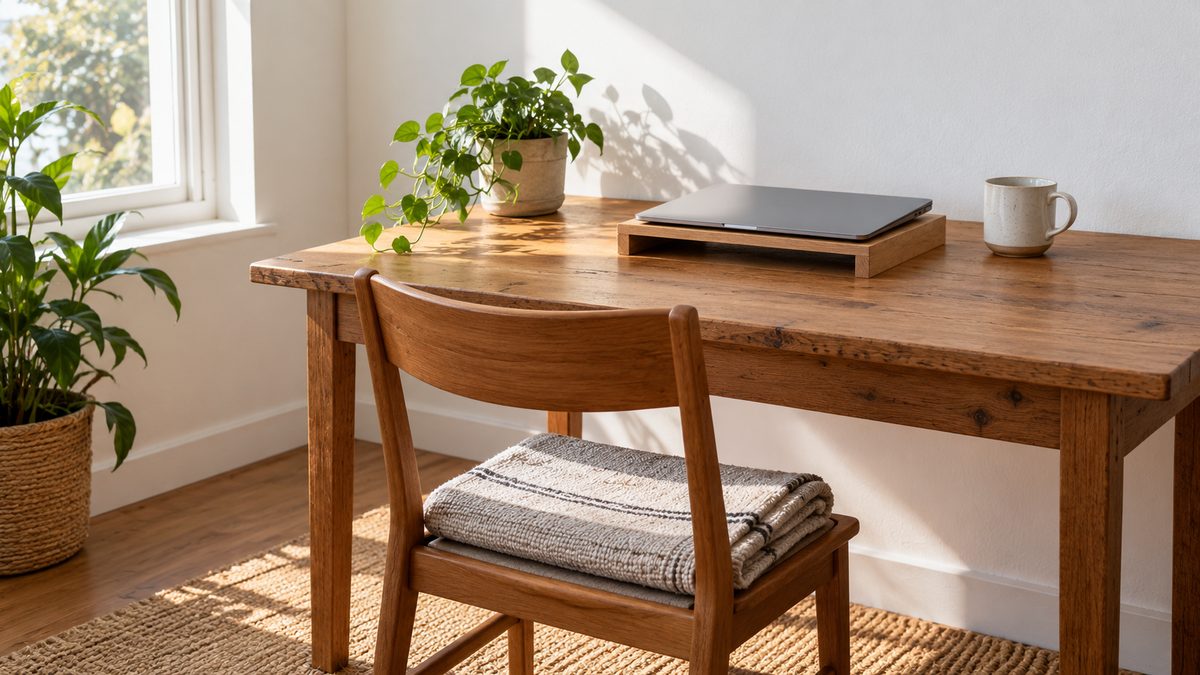
A budget workspace begins with a clear description of the problem. Perhaps your laptop screen sits too low, your feet dangle or your mouse has no room. Solve the limitation that affects ordinary work most, rather than starting with a list of fashionable equipment.
You may be working at a dining table, in a shared room or beside a bed. A useful arrangement needs to fit that reality. It should also be simple to set up and put away, because equipment left in a cupboard cannot help during the working day.
Make the free changes first
Clear the space beneath the table so both feet can rest and move. Bring the keyboard area close, put the mouse beside it and remove objects that force you to reach. Move frequently used items nearer than occasional reference material.
Check daylight and glare. Turning the workspace slightly or using existing curtains may make a screen easier to read. Increase text size in your main applications before leaning forwards. These changes can address a viewing problem without buying a larger monitor immediately.
Explore the chair's controls if it has them. Height, recline and backrest adjustments may already provide options you have not used. Follow instructions for unfamiliar mechanisms. A damaged chair, however, needs a safe repair or replacement rather than a more inventive sitting position.
Prioritise separate controls for longer laptop work
A laptop combines a low display with a keyboard that needs to stay near your hands. Separate keyboard and mouse controls let the screen move higher while your arms remain comfortable. This can be a useful first purchase if laptop work occupies much of your day.
Choose controls that fit the available surface and feel comfortable for your tasks. A compact keyboard leaves more room for the mouse, but very small keys may not suit you. Check connection compatibility and whether your device has enough ports before purchasing accessories.
Use a stable screen support with ventilation clear. A narrow stack of objects that rocks whenever you type is unsuitable. Our laptop posture guide explains the full arrangement, including why raising the laptop alone can leave your hands too high.
Check chair fit before replacing it
Sit back and see whether the seat presses behind your knees. Check if your feet remain supported at a height that suits the table. If the chair fits but the table is high, a stable footrest may help more than an expensive new chair.
A small folded towel may make back contact more comfortable in some seats, but it should not shove you forwards or slip during use. Test any addition while typing and standing. Avoid piling cushions onto a chair until the seat becomes high, soft and unstable.
If the chair cannot fit, look at dimensions and condition before marketing terms. A sound used chair with suitable adjustments may be an option, but inspect it carefully. The office chair guide lists features to test and questions about returns.
Spend according to the limitation
| Current limitation | Possible priority |
|---|---|
| Laptop screen and hands cannot both settle | Separate controls plus a stable screen support. |
| Feet hang at usable typing height | A stable foot support of suitable height. |
| Chair does not fit despite adjustment | A chair with appropriate seat dimensions. |
| Text remains difficult to read | Zoom and vision review before display spending. |
| No clear mouse area | Rearranged surface or a suitable compact keyboard. |
This is a decision aid rather than a shopping order for everyone. Work needs differ. Someone handling long documents may value display space, while someone taking calls may need a suitable headset. Describe the task and the current obstacle before deciding what earns a place in the budget.
Make shared space easy to reset
Keep portable accessories together in a tray or box. Mark a safe place for the screen support and leave enough cable slack to unpack without strain. Avoid routing wires across a walkway simply because a power socket is inconveniently placed.
If the table returns to family use each evening, choose equipment that stores without complicated disassembly. A repeatable five minute setup can be more useful than a large arrangement you avoid rebuilding. Keep drinks and food away from electrical connections during the transition.
For shared chairs, make a short note of your useful adjustments. A housemate's height setting may change yours between work sessions. Begin the day by checking feet, hand reach and screen view before opening the application that tends to absorb your attention.
Allow for the total cost of an item before choosing it. Delivery, assembly, replacement parts and return charges can change a seemingly inexpensive purchase. Measure the available space and read the dimensions carefully, especially for chairs bought online. Keeping packaging until a permitted trial ends may make a return easier if the equipment does not fit your needs.
Leave space in the day as well as the room
No purchase replaces movement opportunities. Use natural task endings to stand, walk or change position. The sitting break guide suggests practical cues that do not require a standing desk, fitness tracker or dedicated exercise area.
Use the desk ergonomics checklist after each meaningful change. Test the setup during real tasks and keep the adjustments that make work easier. Buying several items at once can make it hard to tell which problem each purchase addressed.
Persistent discomfort should not lead to endless spending. Seek professional advice for pain that continues or worsens, especially with numbness or weakness. A practical home workspace can support comfortable work while still having limits. Your budget is better used when you distinguish an equipment obstacle from symptoms that need assessment.