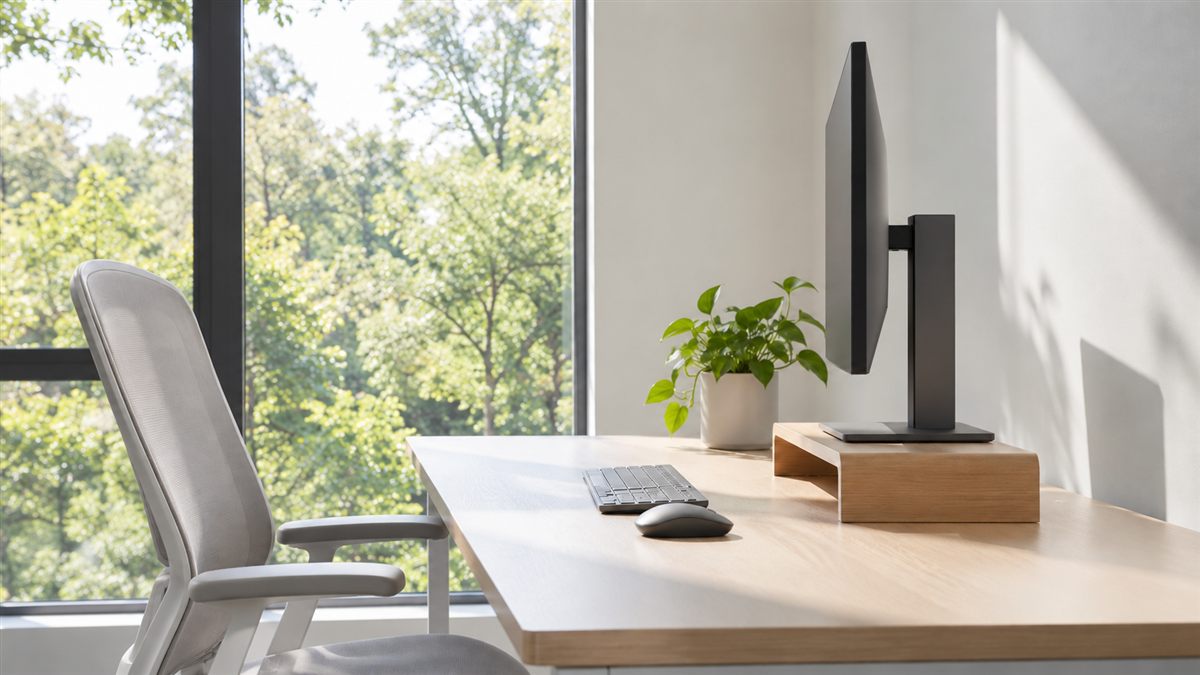
A screen belongs where your eyes can read it while your head rests comfortably over your body. Start directly in front of your chair, then adjust height, distance and text size together. Moving the monitor alone may not solve a problem caused by tiny text or reflections.
There is no single measurement that suits every display and every pair of eyes. A large monitor used for detailed drawings differs from a smaller screen used for email. Your glasses also influence the part of the screen you can view comfortably.
Choose distance before fine tuning height
Try placing the screen around an arm's length away. Sit against your backrest and read a normal document. If you must move your face forward, enlarge the text first. Moving very close can make the whole screen harder to scan without repeated head movements.
If the display feels overwhelming or you turn your head substantially to see its edges, move it back a little. Keep essential windows near the centre. A wide screen does not require important information to occupy its full width all day.
Check distance during the tasks you perform most. Video calls may hide a reading problem because faces are large, while spreadsheets expose it immediately. Save a comfortable zoom setting for common applications instead of resetting your body to accommodate each small document.
Use eye level as a starting point
With your feet supported and shoulders relaxed, look ahead. The top of the main display can begin near that level, leaving much of the screen below your direct gaze. Avoid lifting your chin or bending your neck down for long periods to read.
Lower the monitor if your progressive lenses make you tip your head back. The useful viewing area of the lens matters more than matching a diagram. If the screen remains difficult to see, an eye care professional can advise about vision and suitable computer use.
A monitor arm can make adjustment easier, but a stable stand may do the same job. Check the weight limit, fixings and desk compatibility before using an arm. Do not rely on a narrow pile of books that can tip when you adjust the display.
Screen setup checks
| What you notice | What to try |
|---|---|
| Leaning in to read messages | Increase text size and check viewing distance. |
| Chin lifted while reading | Lower the display and consider how your glasses work. |
| Repeated turns towards one side | Move the primary display directly ahead. |
| Reflections across dark areas | Reposition the screen or control the light source. |
| Screen shaking during typing | Check the support, desk stability and mounting hardware. |
Make one change at a time and try it during an ordinary work block. A photograph may reveal an obvious sideways turn, but your own comfort and ability to see the work provide more useful feedback than a visually tidy setup.
Arrange two screens around actual use
If one monitor holds most of your work, keep that monitor ahead and the secondary display nearby on either side. Place frequently checked information near the shared edge. This reduces the need to twist towards the far outside corner.
If both screens receive similar attention, centre the meeting point and angle them gently towards you. Keep their readable areas at similar heights where possible. Turn your chair and body when working on a side display for a longer period instead of holding your neck rotated.
A laptop used as a second display often sits much lower than the monitor. Raise it on a secure stand if you can use a separate keyboard and mouse. The laptop posture guide explains why lifting the screen without separate controls can create a different reach problem.
Deal with light before changing your posture
Place a screen so strong daylight does not fall directly on it or shine straight into your eyes. A window to one side may work better than one directly behind the monitor. Curtains or blinds give you options as daylight changes.
Use room lighting that lets you see paper and the keyboard comfortably. An extremely bright screen in a dark room can feel uncomfortable. Adjust brightness to the setting and keep the display clean enough that fingerprints do not encourage squinting or leaning.
Take opportunities to look away from close work and notice distant objects. Blink normally and seek eye care advice if vision becomes blurred or eyes remain sore. Screen positioning cannot determine the cause of eye symptoms, headaches or persistent neck discomfort.
If your work mixes paper and screens, place the document close to the display you use most. A stable document holder can reduce repeated looking far down at the desk. Keep handwritten notes on a comfortable surface when writing, then return them to a readable location. The arrangement may change between reading, typing and marking up a printed page.
Keep the rest of the workstation involved
A perfectly positioned screen is less useful if the keyboard sits beyond an easy reach. Bring the controls close enough for your elbows to stay comfortably near your sides. Our desk sitting guide connects screen choices with feet, seat depth and back support.
When switching between sitting and standing, reset the screen and keyboard as needed. Your standing eye height will differ from your seated height. Save suitable desk presets if available, then check that neither setting pulls the monitor cables tight.
Finish by planning movement away from the screen. Use the desk ergonomics checklist for a broader review, including clear legroom and routine breaks. Seek medical advice for persistent pain, worsening symptoms or new numbness and weakness rather than continually chasing a different monitor angle.